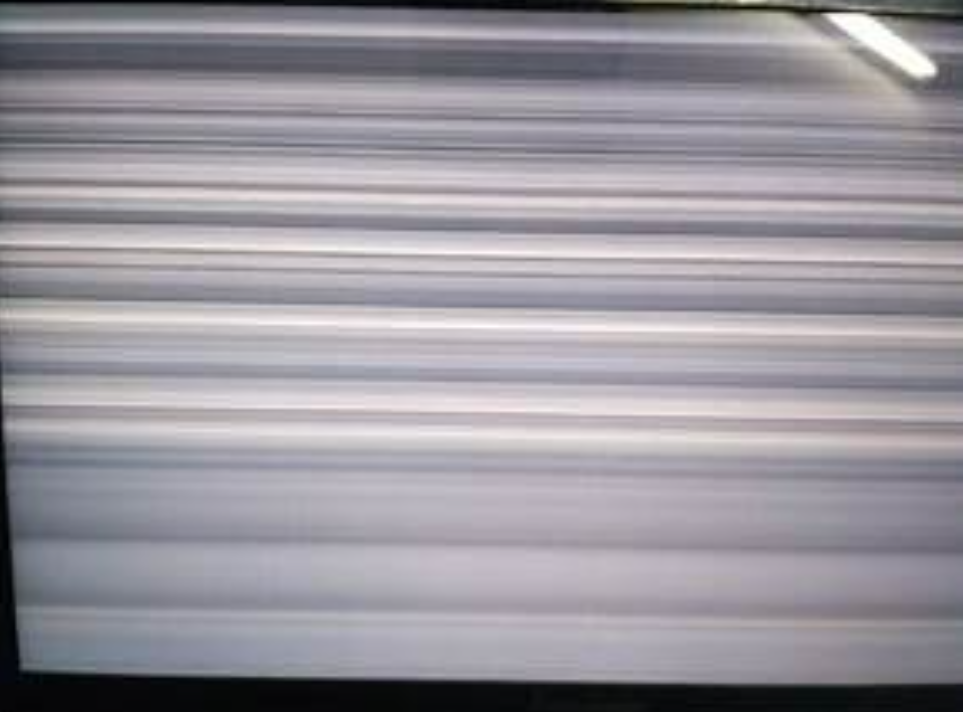
Experiencing flickering lines on a Lenovo screen can be frustrating, interrupting your productivity and enjoyment. These lines often indicate underlying issues that range from simple software glitches to more complex hardware problems. Our quick troubleshooting guide will help you identify the root cause, providing step-by-step instructions to resolve the issue efficiently. Whether it’s adjusting display drivers or testing hardware components, this guide offers comprehensive insights into diagnosing and fixing the problem, ensuring your Lenovo device runs smoothly. Engage with this guide to learn if your issue stems from software quirks or potential hardware failures that need addressing.
Software Factors That Cause Flickering Lines
Several software-related issues can cause flickering lines on your Lenovo screen. Identifying these can swiftly lead to a resolution.
Outdated or Corrupted Display Drivers
Display drivers are crucial as they enable your hardware to communicate with the operating system. If these drivers are outdated, compatibility issues with new applications and updates can arise, causing flickering. Corrupted drivers might lead to similar disturbances, including a Lenovo laptop screen flickering horizontal lines during startup or while running graphics-heavy programs. To address this, check the Lenovo support website or Windows Device Manager for the latest drivers. Installing the updated version can resolve display issues and improve device performance. Regularly updating these drivers prevents the recurrence of screen flickering.
Windows Updates, Apps, and Settings Conflicts
Windows updates, apps, or conflicting settings can trigger screen flickering. Sometimes, new updates are not fully compatible with older systems, causing instability. Similarly, apps with high graphics demands might overtax the GPU, resulting in flickering. Investigate recent changes in your system settings, and consider rolling back updates if issues started after them. In the meantime, ensure memory-intensive apps are closed during troubleshooting to isolate the cause of flickering.
Hardware Issues Behind Screen Lines
Hardware problems can also cause flickering lines on Lenovo screens. Accurate diagnosis is key to resolving these effectively.
Loose or Damaged Display Cable/Hinge Stress
Physical stress on your device—such as frequent opening and closing of the laptop lid—can loosen or damage the display cable. This often results in intermittent flickering lines as the connection to the screen becomes unstable. Inspecting the laptop’s hinge and ports for signs of wear or damage can guide repairs. Professional servicing is often required to replace or secure the cables if they are damaged, ensuring a lasting solution to the flickering problem.
Failing LCD Panel or GPU Problems
The LCD panel or GPU can sometimes be the source of flickering lines. Misalignments, panel damage, or GPU malfunctions can cause display issues. Testing these components requires external hardware connections or professional diagnostics. If the display is clear on another monitor, GPU or cable issues might be the culprit. Otherwise, the LCD panel might need replacing. Investigate warranties or consult Lenovo support for guidance on handling these repairs to maintain device integrity.
Quick Software Fixes to Try First
Before dismantling hardware, start with these software fixes to eliminate potential causes.
Restart Display Driver and Safe Mode Checks
Restarting the display driver often resolves minor glitches. Use the shortcut keys “Windows + Ctrl + Shift + B” to restart the driver swiftly. For further diagnosis, boot the Lenovo in Safe Mode to determine if third-party apps or recent updates are responsible. If the flickering stops in Safe Mode, a software issue is indeed the cause. Isolate and uninstall recent apps or updates to address the problem without extensive troubleshooting.
Update or Reinstall Drivers and Roll Back Updates
Refreshing or replacing outdated drivers can solve screen issues. Reinstalling them through Device Manager ensures compatibility and stability. Navigate to the “Display Adapters” section, right-click your adapter, and select “Update driver” or “Uninstall” before reinstalling. Rolling back Windows updates can also restore system balance. Access update history and reverse recent changes if flickering began post-update, providing a straightforward solution to counteract compatibility issues.

Checking Hardware Without Opening Your Lenovo
You don’t always need to disassemble your Lenovo to check for hardware problems.
Use an External Monitor to Test Display Output
Connecting your laptop to an external monitor can help pinpoint the issue. If the external display shows no flickering, the problem might lie with your laptop’s LCD screen or cables. Conversely, if flickering persists on the external monitor, your GPU may be to blame. This simple test helps narrow the problem area effectively, providing direction for more tailored troubleshooting or repair services.
Adjust Refresh Rate and Power Settings
Improper display settings can also lead to flickering. Altering the refresh rate or power settings can create stability. In “Display settings,” locate “Advanced display settings” to modify the refresh rate; choose a lower rate if issues persist. Likewise, adapt “Power & sleep settings” to prevent battery-saving modes from affecting display functionality. Optimizing these settings ensures consistent performance, minimizing unnecessary flickering.
Conclusion
Flickering lines on a Lenovo screen can be distracting and indicative of deeper issues. Whether dealing with outdated software drivers or hardware problems like a failing GPU, methodical diagnosis and updates can rectify your display frustrations. Always start with software solutions to eliminate simpler issues, and use external hardware checks as needed. Keep your system and applications current to prevent future problems. Proactively managing these elements ensures your Lenovo remains a reliable tool for all your computing needs.